Microsoft have just released a new video which provides an overview of the forthcoming Windows Live Essentials “Wave 4” release – check it out below. A quick rundown of key features:
Invoke the power of dark magic and have Windows Live Photo Gallery automatically recognise faces and allow you to quickly tag your friends
Easily retouch your photo to show the shot you want – like all the best paparazzi peeps
Combine elements of several photos into one final photo, allowing you to create a group shot of yourself alongside Obama and Saddam Hussein
Use Windows Live Movie Maker to create “You’ve Been Framed” style home movies no-one wants to watch, and upload to Facebook, YouTube and elsewhere
Saturate the web with the same boring old holiday shots – upload your photos and movies to SkyDrive/Live Mesh, flickr, Facebook MySpace, YouTube and others
Even better – bombard your mates directly with e-mail with Windows Live Mail (or your own regular e-mail client) connecting to Hotmail, GMail, Yahoo! Mail and others, so you can e-mail entire albums without actually attaching them to your message (courtesy of SkyDrive integration)
Keep banging on about your uninteresting photos by using Windows Live Writer and blogging to Windows Live Spaces, Blogger, TypePad AND WordPress for maximum saturation
Use Windows Live Sync to store your photos in the cloud, so you can bore people anytime, anywhere
Are you a flash bugger with more than one PC? Use Sync to keep your albums, er, synced over multiple computers
Harass your entire social network by using Windows Live Messenger, which now combines multiple social sites like Facebook, Twitter, YouTube, MySpace, LinkedIn and many others into one dashboard
Seriously, though – the freeWindows Live Essentials download (not available just quite yet) is full of fantastic applications that help integrate your social networks, manage photos and videos, and sync’n’share content very easily.
Like Seesmic Look, this tool is limited to Twitter only. However, the interface is quite slick and the whole application is quite fast. I also like the “infinite” scrolling… 🙂
It has been just about a month since I decided to launch wholeheartedly into the social networking scene. I have discovered, very quickly, what an incredibly disjointed experience this whole social networking thing is.
I aggregate, consume and disseminate information through my Windows Live blog, SkyDrive Photo Albums, YouTube, Facebook, Twitter and LinkedIn. However, I’m finding it incredibly hard to integrate these disparate services together. Also, in the age of pretty user-interfaces, seeing web pages as ugly as the examples below is slightly disappointing:
This is a very nice Silverlight client that runs locally on the desktop (either Windows or Mac). A very slick interface – slick enough for me to actually make a video tour rather than write some meaningless text about the swish interface…
I also like the fact that you can configure Outlook-style notifications:
But… The spoiler is in the name – this is very much for Facebook only. So – a great replacement for the official Facebook web page, but hardly the social aggregator I’m looking for. Still – very slick and shows great promise if they can integrate it with Twitter, YouTube and others… You can download here…
Seesmic Look
Seesmic Look is another Silverlight client that can also run on the desktop. Again – it also has a slick interface, so I’ve posted up another quick video tour of this…
Like the Silverlight Client for Facebook, though, the Seesmic Look client is currently very limited as it only pulls information from Twitter… Back to the drawing board for me, but don’t let that stop you from trying it out yourself…
Spindex
Spindex was the first real “aggregator” I tested out. Released by Microsoft FUSE Labs (FUSE standing for FUture Social Experiences), it does not really knit content together in a traditional sense. The focus is very much on search and the connectivity of information – it searches through your various social networking interactions (in my case Facebook and Twitter) and brings to the surface common themes and trends. Again – best explained by a video:
I like Spindex, but it is very weird and sometimes illogical. Although it collates all the information I need from various sources, it presents this info to me in what it deems the most relevant to me. Being a logical, methodical and anal type, I like sifting through all my information myself and making calls on what I think is and is not worth my attention… Give it a shot and see what you think…
[Update: OK – it appears that the ordering of the links was not deliberately “illogical”. Spindex should interleave all my posts from Facebook/Twitter/others and order them chronologically, which makes much more sense. However, this currently doesn’t happen for quite a few folk… http://bit.ly/aw22rj A big thumbs-up to the Spindex team for responding so quickly – they’re now looking into the issue…]
sobees web
sobees web is an interesting technology application, but boring practical application. It is again based on Silverlight, and can be run on the web or on the local desktop. Like Spindex, it also uses Windows Azure in the back-end – which hooks into various social networks (in addition to Facebook and Twitter, I also find that LinkedIn is supported).
Unfortunately, it only appears to provide basic (and separately listed) feeds, as you can see in the screenshot above. It also only really handles basic text feeds well – the navigation of friends, events, connections and so forth is pretty basic and poor. And forget about viewing photos and videos – trying to access these just launches a web browser back to the web-based interface of Facebook et. all.
This is similar to sobees web – better in some respects and worse in others. Seesmic Desktop is another Silverlight application (seeing a theme here?). It does aggregate feeds and presents them in one list (see screenshot above). Like sobees web – this is it’s main (only?) strength.
Again – there’s not much slick interaction – it’s not easy to navigate your list of friends, quickly view photos, perform searches, etc. Having said that – I’d still encourage folk to try it out…
Closing Thoughts
Well – I have to admit that I almost wet myself when I came across the Silverlight 4 Client for Facebook – the interface is extremely slick, fast and intuitive. Navigating around is easy and the Facebook information is incredibly well-presented. The downside is that it doesn’t quite aggregate any other data at the moment. In an ideal world, this client would be expanded to support other social networks – add a sprinkling of the clever search integration in Spindex and I’d have the perfect client for knitting together my online social life.
Coming on the horizon, though, are further attempts to mash-up the social networks… Windows Phone 7 will bring this to the mobile phone in a far slicker way than any device so far, and I hear good things about the tight integration of social networks in Windows Live “Wave 4”, which is due out in the next few months… However, I’m personally really excited about the social integration within Windows Phone 7:
In the meantime, I’ll still struggle along with a combination of the Facebook and Twitter interfaces on the web browser and mobile phone, as well as using the Silverlight 4 Client for Facebook and Spindex.
Anyone else come across any interesting aggregators…?
Thanks to Microsoft, we can waste yet more hours of our lives sitting in front of the PC watching these shows, furiously trying to recapture our student youth… Huzzah!
Many moons ago (back in the Windows XP days), I decided to rip my entire music CD collection to a digital file format. I made the decision to go for the Windows Media Audio format, as I was both a keen Microsoft fanboy and also because I was a wannabe audiophile. At the time, the WMA format was much further advanced than the standard MP3 format, allowing higher aural fidelity at the same or smaller bit-rate (better quality at smaller file size).
Hard disk storage space (and device compatibility) were constraints back then, so I ripped music at WMA v9 192kbps – quite a high quality at the time. Over 500+ CDs from my collection were painstakingly and laboriously ripped.
However, time marches on and I now own a [shiny new MP3 player] which supports newer and better audio formats. After much pondering, I’ve decided to go through the whole process of re-ripping my entire music collection once more. Look at the stacks that I need to wade through…!
Lesson learned, though. Storage is now incredibly cheap, so I’m going to use the Windows Media Audio Lossless format, basically creating a new music collection at CD quality, with no loss of fidelity at all.
This master library is going to be stored on my Windows Home Server, which allows me to access my music on my home network through my various Tablet PCs, the Xbox 360 and the dedicated Windows Media Center connected to my TV and hi-fi system.
In addition, the entire library is automatically re-encoded to WMA Pro (at 128kpbs) on the Windows Media Center, which is then automatically synched to my Live Mesh setup – this is then funnelled down to my day-to-day Tablet PC (the HP EliteBook 2730p) which then pumps the music wirelessly to my Zune HD.
So – I’m hopefully future-proofed. As audio formats march on and get better, I can simply change the automatic re-encode process to a newer music format (or eventually just use the lossless format once technology reaches the stage of being able to hold 500GB of music on tiny MP3 player devices) and I’ll will be reassured that everything gets automatically and seamlessly updated across all my PCs and music devices.
Given the recent excitement about Microsoft’s new phone OS (a topic for a future blog, but more details at Engadget), I simply had to get my hands on Microsoft’s latest MP3 Player, the Zune HD. If you’re wondering what the link is, then I should point out that the user interface for the next version of Windows Phone is very similar to the interface in the Zune HD, hence my curiosity. Indeed – it appears that the Zune team have been subsumed into the Windows Phone team (or is it the other way around), and there is a very strong scent of Zune pervading through the new phone release.
Anyway – back to my toy…
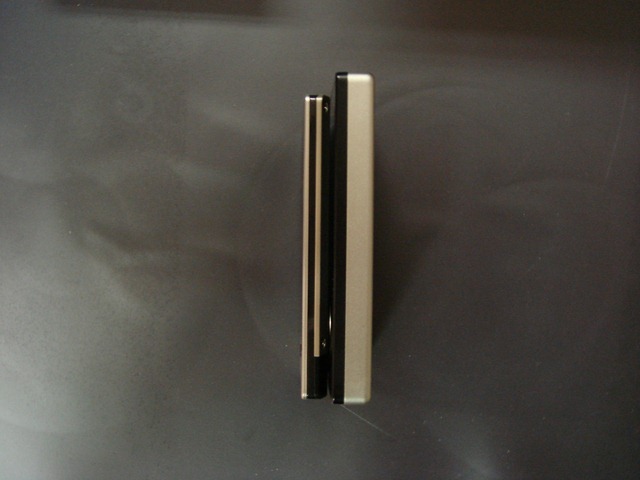
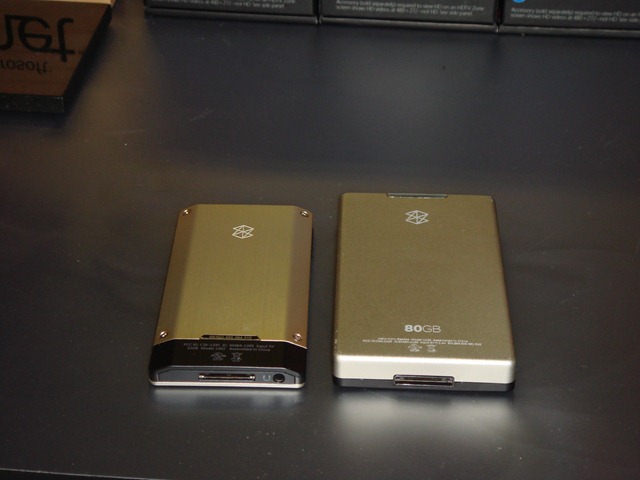
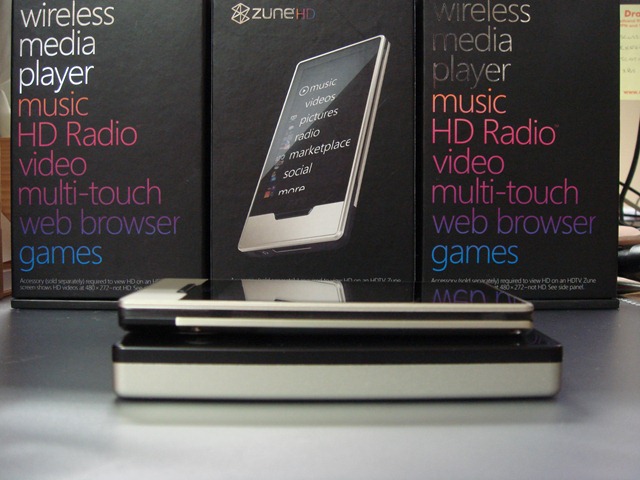
If you’re wondering, here’s how it compares in size to a Zune 80:
There are videos all over the place on how the user interface works, but the thing that impresses me most is the “connectedness” and pervasive content in these devices.
On my Zune HD, I merely uploaded my music collection onto the device. It then worked out who the artists were, downloaded photos and biographies, and also linked to other albums by the same artists, as well as recommending similar artists. It’s nice to have that info all on the device, without actually being connected to the Internet at that time.
OK – so the Zune HD has been out for a while now (launched nearly 6 months ago, back in Sep 09)… But as it’s only available in the US and Canada, it’s hardly a surprise that it’s taken a while for me to get my hands on one (a big thanks to one of the peeps at Micropack (one of our clients) who brought three of these units back to the UK for me).
I’ve had a couple of false starts when trying to reorganise and upload photos… However, third time lucky?
I’ve nailed down a fairly robust workflow for processing all of my photos now – it’ll just take some time to carry out.
I have been organised enough to arrange my photos into grouped events based on dates (for instance, ECTS 2000 on the 03rd September 2000), so it’s just a case of processing these batches one at a time…
First, I use Windows Live Photo Gallery to rotate photos, perform basic photo clean ups (such as removing red-eye) and add the basic metadata – that is, apply some People Tags, other Descriptive Tags and perhaps a few captions.
I then reload the batch of images in Microsoft Expression Media 2 – this handy application allows me to add some geotag data to relevant photos. I do particularly like Expression Media, as the app opens a Bing Maps window where I can just drag and drop my photos onto a geographic location. This tags my photos with a set of GPS co-ordinates.
I then take those GPS tagged photos and run them through Microsoft Pro Photo Tools 2, which has a handy feature that resolves GPS co-ordinates with Location Information, such as the City, State/Region, Country, etc.





 RandomStan